TrainSim.Com Installation Guide For MSTS Add-Ons

INSTALLATION GUIDE FOR MSTS ADD-ONS
Created byOTTO WIPFELand best viewed at 1024 x 768 Desktop Resolution
First of all you are going to need the Software for adding Routes or Rolling stock to your
Microsoft Train Simulator. It can be obtained as PAYWARE or FREEWARE on CDs, or downloaded
from Web sites like this one, being rated as one of the most popular Train Sim Web sites !
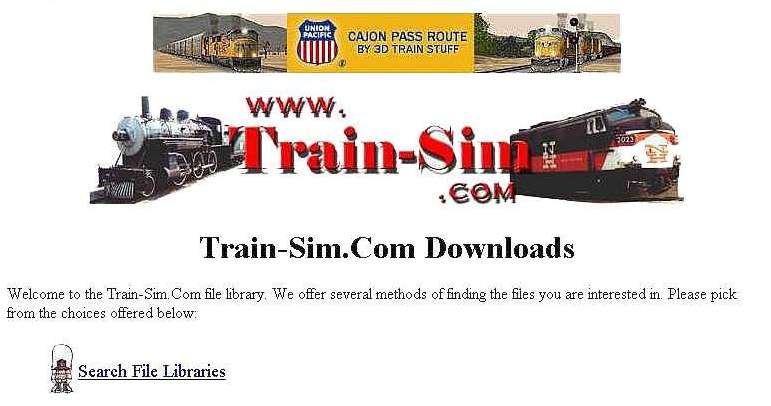
Free Registration is required to be able to use the File Libraries and for a small annual
fee of: $ 30.00 you can get Premium Membership, giving you unlimited access at all times.
Next enter details of what you are looking for or search for files in a number of ways.
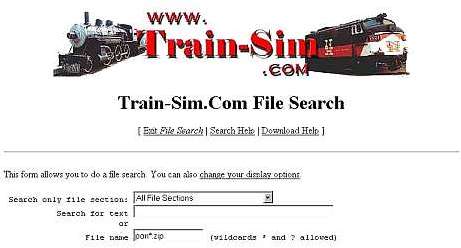
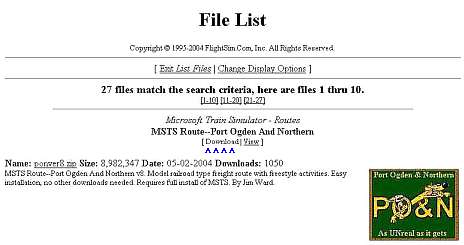
Here we searched for and found a FREEWARE Download of the Port Ogden and Northern Route-8,
one of the most popular, created by Jim Ward, already having been downloaded 1050 times.
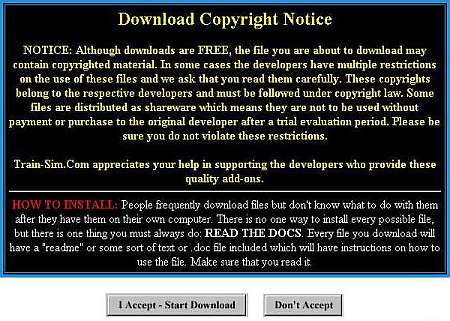
Clicking on [Download] brings up the left Screen. "Accepting" shows the one on the right.
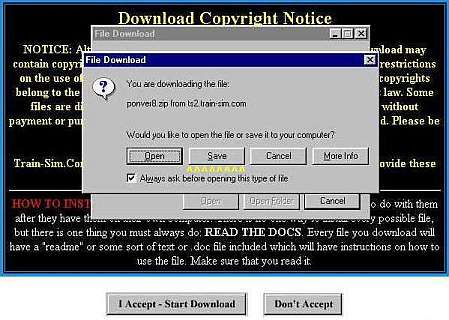
Click one [Save] and in the next window point the Download to a Folder of your choice.
Here we use one called MSTS to store all MSTS Add-On Downloads in.
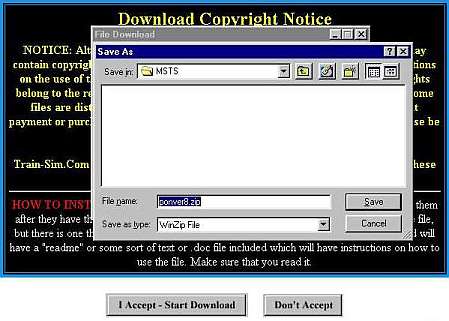
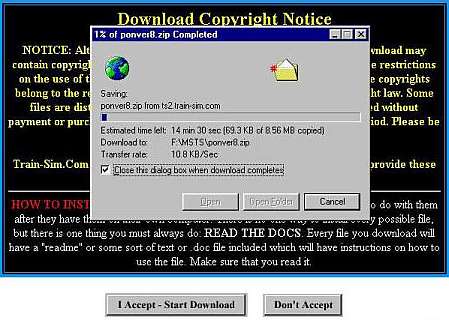
In the left window above showing next click one [Save] again and the Download starts.
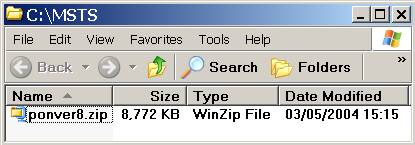
Download finished and here it is in the
C:\MSTS Folder, ready to be unzipped.
Left-Double-Clicking onponver8.zip will
bring up WINZIP, recommended to be used
in preference to any other un-zipper.
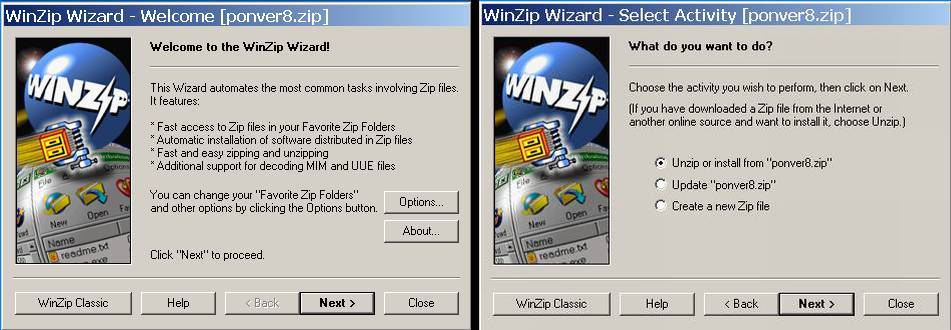
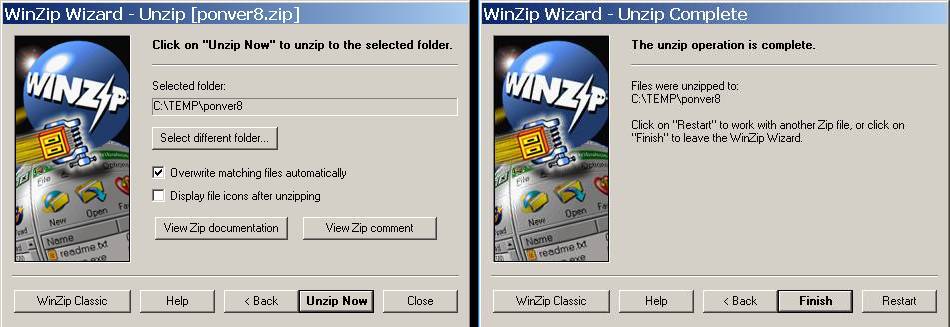
Select the folder for the downloaded zip file to be unzipped into, in this case C:\TEMP
where it will be unzipped into a folder of the same name as the zip file = ponver8.
This Route supplies a Self-Installer: PON8.exe which will do it's job as shown below

Left-Double-Click on PON8.exe Select the MSTS Drive/Folder unzipped - but next comes
THE MOST IMPORTANT PART OF ANY ADD-ON ROUTE INSTALLATION !
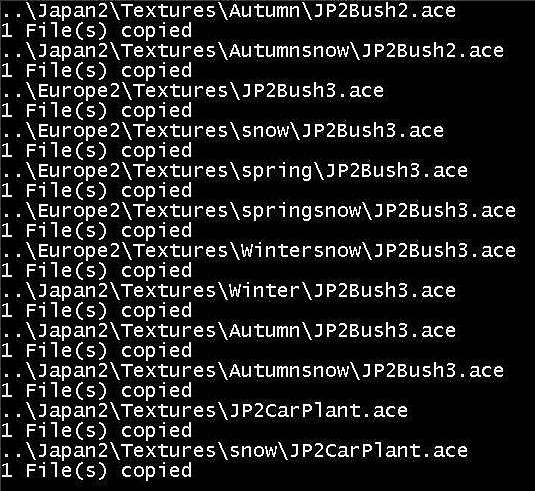
All ADD-ON Routes need Shapes and Textures Files from all the MSTS Default Routes, which
are copied from them using an Installme.bat or similar and unless you can see a screen
like the one below, scrolling text showing that Files are being copied, then the Route is
likely to have problems being run, complaining about missing files and crashing MSTS !!!
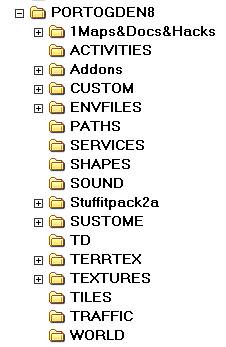
This is what the new Route's
Folders should look like and
contain all the files copied
to them by the Installme.bat
The new Route's name should now
appear in the MSTS ROUTES Menu.
ADD-ON Routes are occasionally supplied with vital components missing, such as Rolling
Stock for their Activities. Other Routes need XTRACKS, NEW ROADS and sometimes special
types of Tracks which need to be Downloaded by themselves and installed as instructed.
It is very important to READ ALL TEXT FILES supplied, listing essential Instructions !
There are other ways and
methods of supplying and
Installing Add-On Routes
Activities and assorted
Rolling Stock.
Click Options to view >>
UNZIP-ONLY Download Files
Multiple Spanned Zip Files
Combined UNZIP & Install
WINRAR Archive Files
Activities Download Zips
Rolling Stock Download Zips
UNZIP-ONLY Download Files
Return to Options Menu
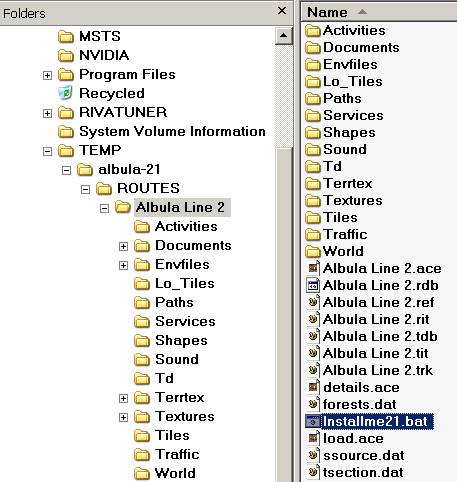
Here we have Downloaded
the ALBULA - Version 2.1
which unzipping creates
the albula-21 Sub-Folder
in the C:\TEMP Folder,
containing a ROUTES
Folder and in it the
actual Folder for the
Albula Line 2
Now COPY / PASTE this
Folder into MSTS\ROUTES
making sure it does not
finish up anywhere else
as so often happens !
Again, it is essential
to run anInstallme.bat
by Left-Double Clicking
on it, which will start
Copying files from the
MSTS Default Routes as
displayed by the black
screen image above.
Multiple Spanned Zip Files
Return to Options Menu
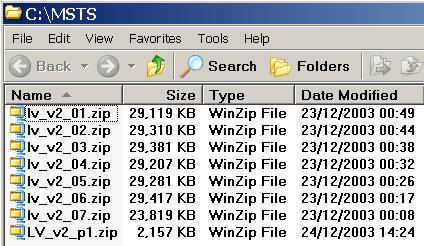
Some Routes are supplied Spanned over
several files as in the above picture.
Each one of them needs to be unzipped
into the C:\TEMP Folder, specifying it
without the name of the ZIP file shown
so that they all UNZIP into it and not
create their own Sub-Folders.
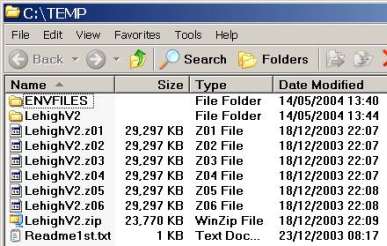
This is what the C:\TEMP Folder now
contains. If not, then the unzipped
files need to be assembled manually.
Left-Double-Click the LehighV2.zip
to start the unzipping of allz0?
files, creating the Route the same
way as in the UNZIP-ONLY example.
Combined UNZIP & Install
Return to Options Menu
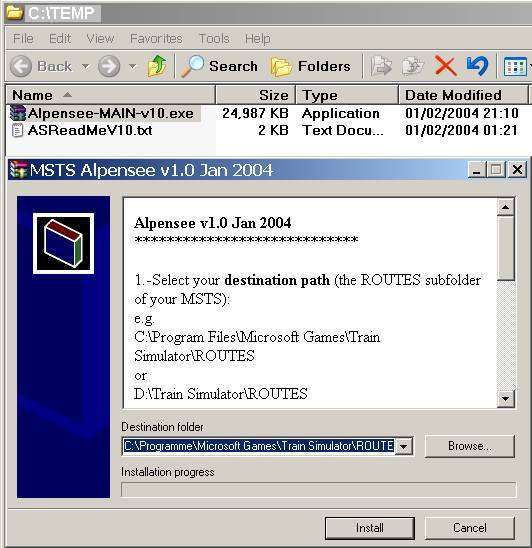
I have deliberately chosen this Route because it
is a perfect example of what can go wrong if not
enough attention is being paid every step of the
INSTALL Procedure !!!
Downloaded to C:\MSTS and unzipped into C:\TEMP
as usual you will notice that this time it is an
EXE File, indicating that this is an "AUTOMATIC"
INSTALLER. Left-Double-Click on it brings up the
INSTALLER window which wants to Install it into:
C:\Programme,German for C:\Program Files,you
would have a problem trying to run the Route in
that Route destination folder !
TheINSTALLME.BATnot running at the end, again
something that must not be overlooked, requiring
that it is RUN manually in it's Route Folder !
! SO PLEASE PAY ATTENTIION !
WINRAR Archive Files
Return to Options Menu
RAR Archive Files are said to be more efficient and popular
in Central Europe, in particular Germany. They need another
program to expand them with which can be obtained from:
To return click on  Back
Back
There are also some FREEWARE Downloaders for RAR files, to
be found easily using a Search Engine like GOOGLE !
Activities Download Zips
Return to Options Menu
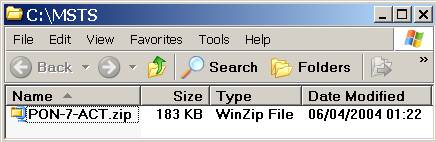
This ZIP File contains Activities for
the PORT OGDEN & NORTHERN-7 and after
unzipping into C:\TEMP, again making
it's own Sub-Folder, there are all of
the Folders to be added to the Route.
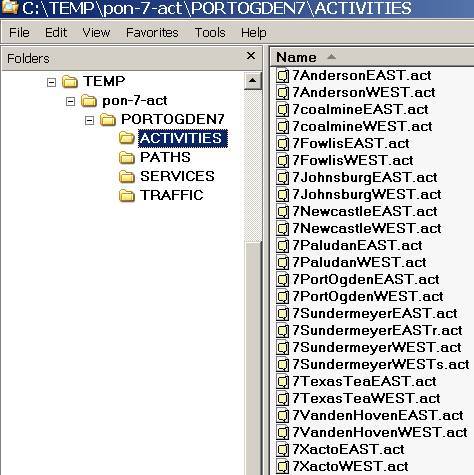
All it then needs is to COPY / PASTE
theACTIVITIES, PATHS, SERVICES and
TRAFFIC Folders to the PORTOGDEN7
Route Folder, making sure that they
don't finish up somewhere else !!!
Rolling Stock for Activities are not
always supplied by their Creator, so
make sure you check any READMEs !
Rolling Stock Download Zips
Return to Options Menu
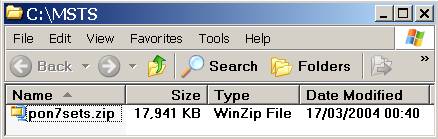
This ZIP File contains Rolling Stock for
the above Activities, needed in addition
to Default Consists and Trainsets.
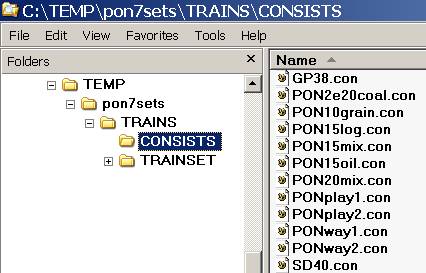
All that is required is to COPY / PASTE
the CONSISTS and TRAINSET Folders into
the MSTS TRAINS Folder.
Restored from the Train-Sim.Com archive, captured June 19, 2004. About this archive.